Your LinkedIn profile already holds years of reputation — recommendations, LinkedIn Services and their reviews, certifications, languages, and freelance experience. The LanceRank Sync Chrome extension pulls all of it onto your LanceRank profile in about two minutes, where it shows up as verified items marked "via LinkedIn."
It works on Free and Pro. The extension reads your own LinkedIn page in your own logged-in browser session — your LinkedIn password never leaves your browser, and we never log in as you.
What you'll need:
- A LinkedIn profile
- Google Chrome (or another Chromium browser — Edge, Brave) on desktop
- The free LanceRank Sync extension
- About 2 minutes
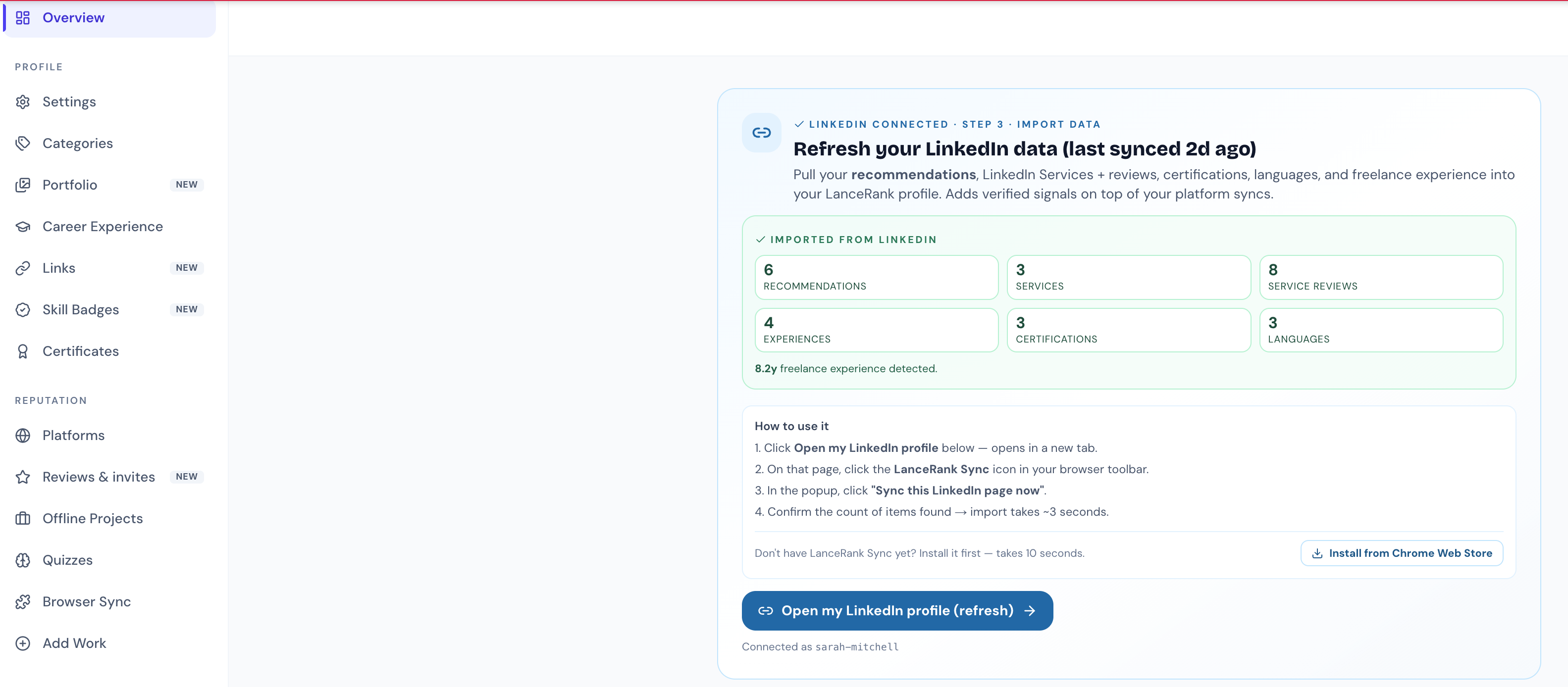
Step 1 — Open your LanceRank dashboard.
Step 2 — Find the "Pull your LinkedIn reputation into LanceRank" card. If you signed up with email and don't see the card yet, click Connect LinkedIn on the banner near the top of your dashboard first — or just paste your URL in the next step.

Step 3 — Paste your LinkedIn URL and click "Connect". Use the full address (for example https://www.linkedin.com/in/your-name) or just your vanity name. This is how we confirm the imported data belongs to you. You can always get your LinkedIn profile page, by going on Linkedin.com and simply clicking on your profile photo (top left corner).
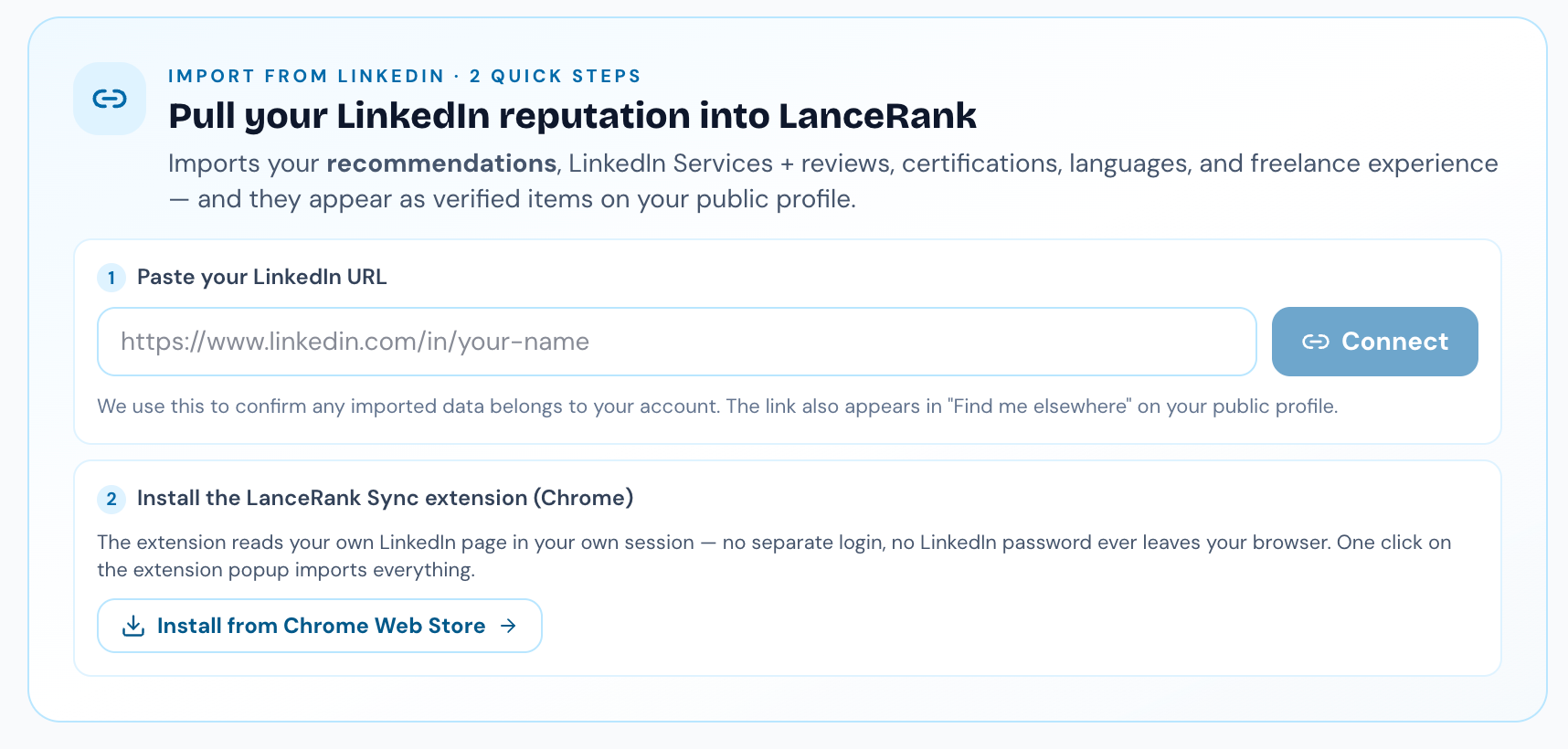
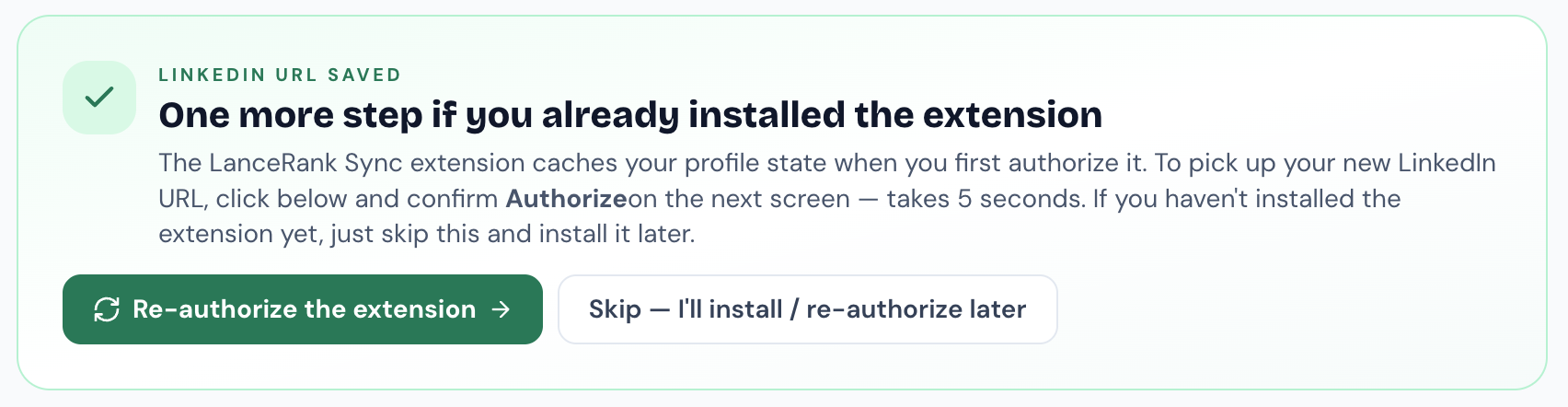
Step 4 — Install the LanceRank Sync extension from the Chrome Web Store using the button in the card. If you already installed it before adding your URL, click Re-authorize the extension when prompted so it picks up your new LinkedIn URL.

In case you already installed the extension, you might be asked to re-authorize it. If so, do that, then return to your dashboard and simply refresh the page.
Step 5 — Back on your dashboard, the card now shows "LinkedIn connected". Click Open my LinkedIn profile — your LinkedIn page opens in a new tab.
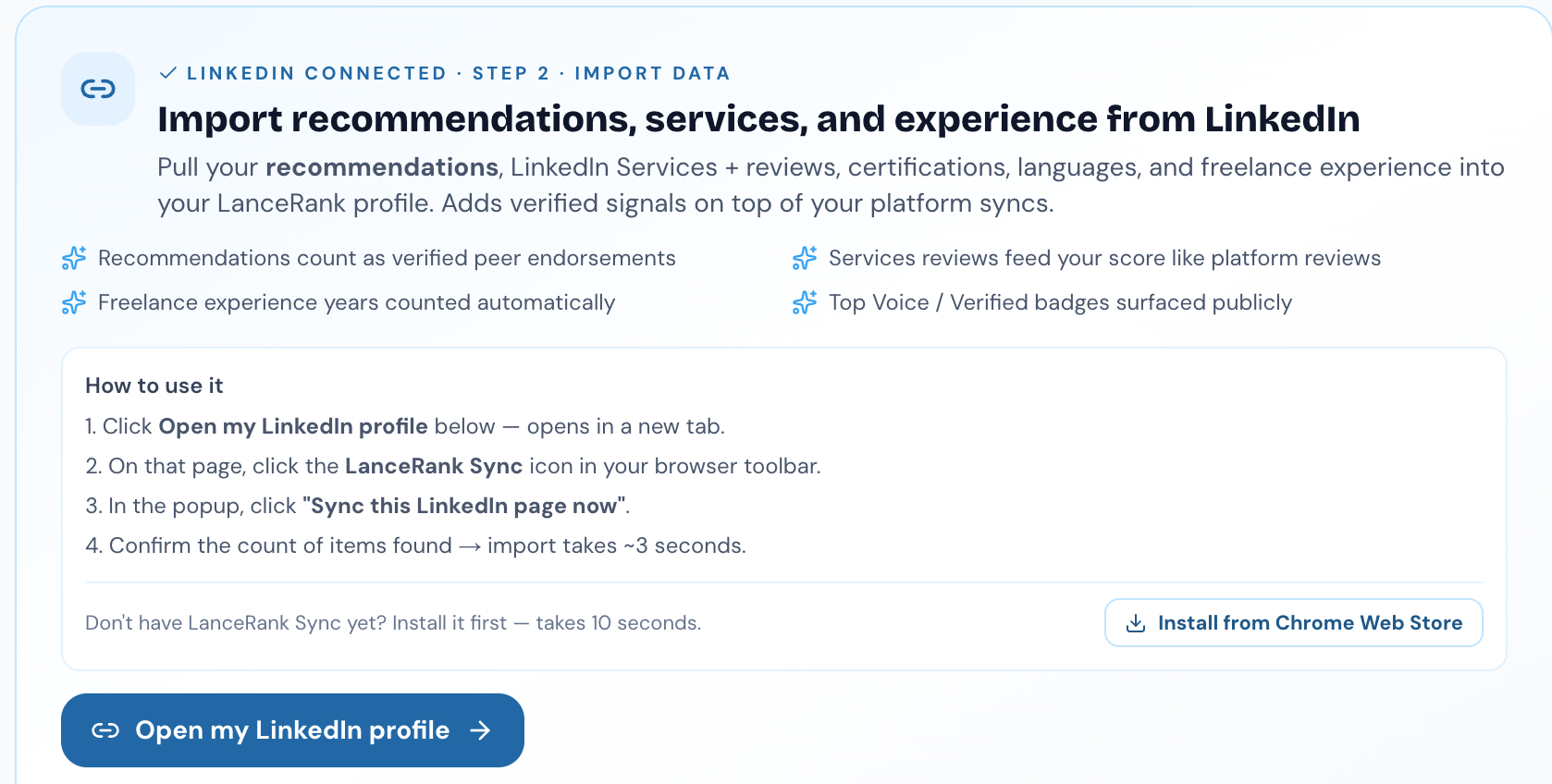
Step 6 — On your LinkedIn page, click the LanceRank Sync icon in your Chrome toolbar (top-right). If you don't see it, click the puzzle-piece Extensions icon and pin LanceRank Sync.
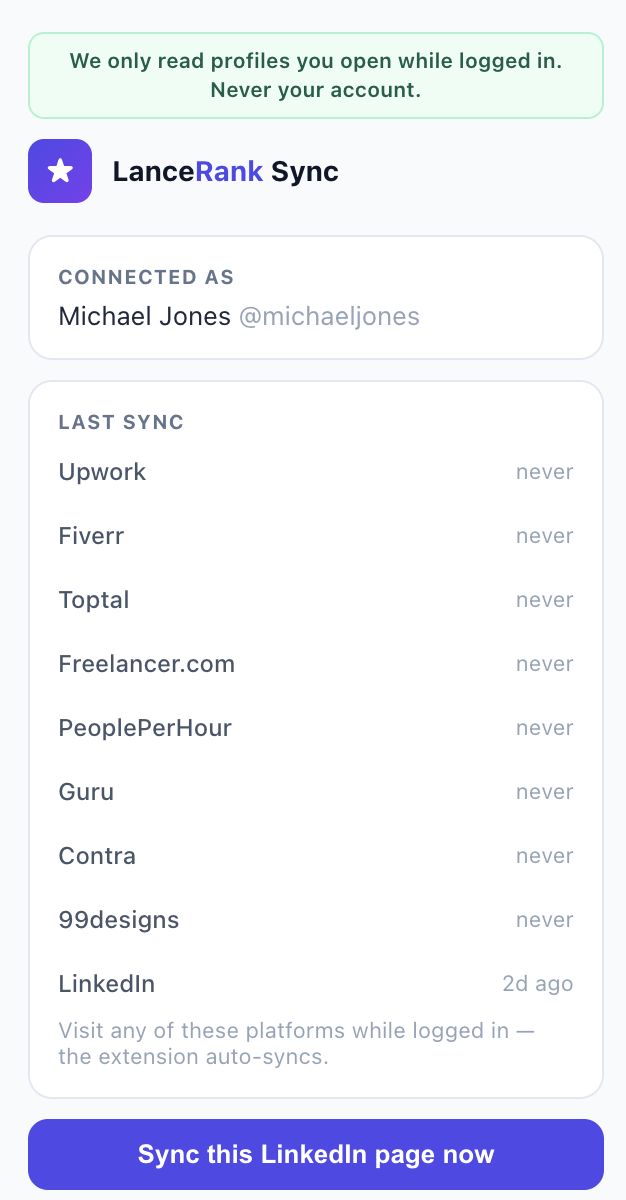
Step 7 — In the popup, click "Sync this LinkedIn page now".
Step 8 — Confirm the count of items found. The import takes about 3 seconds.
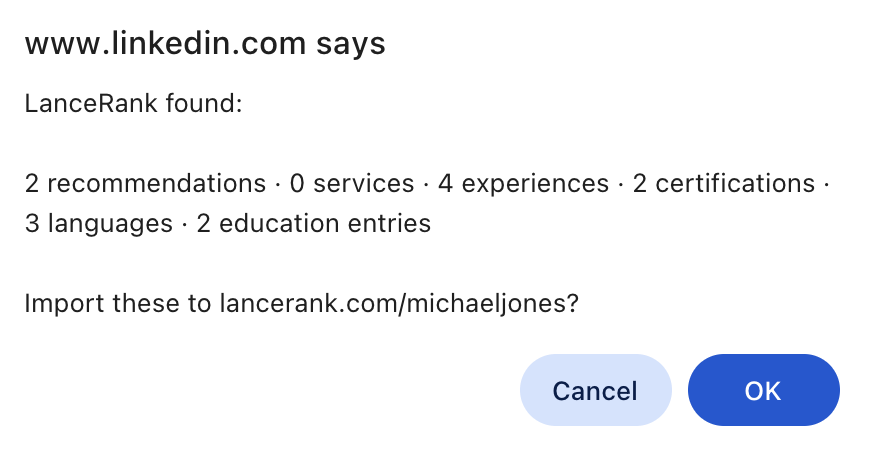
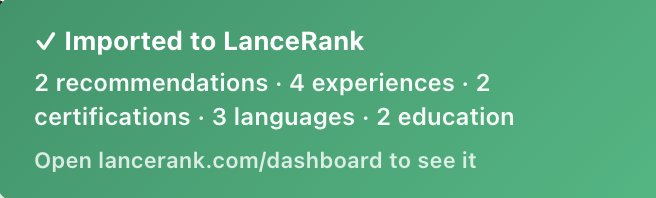
Done. Your recommendations, LinkedIn Services and reviews, certifications, languages, and freelance experience now appear on your dashboard and on your public profile — each one labelled "via LinkedIn" with a link back to the original.
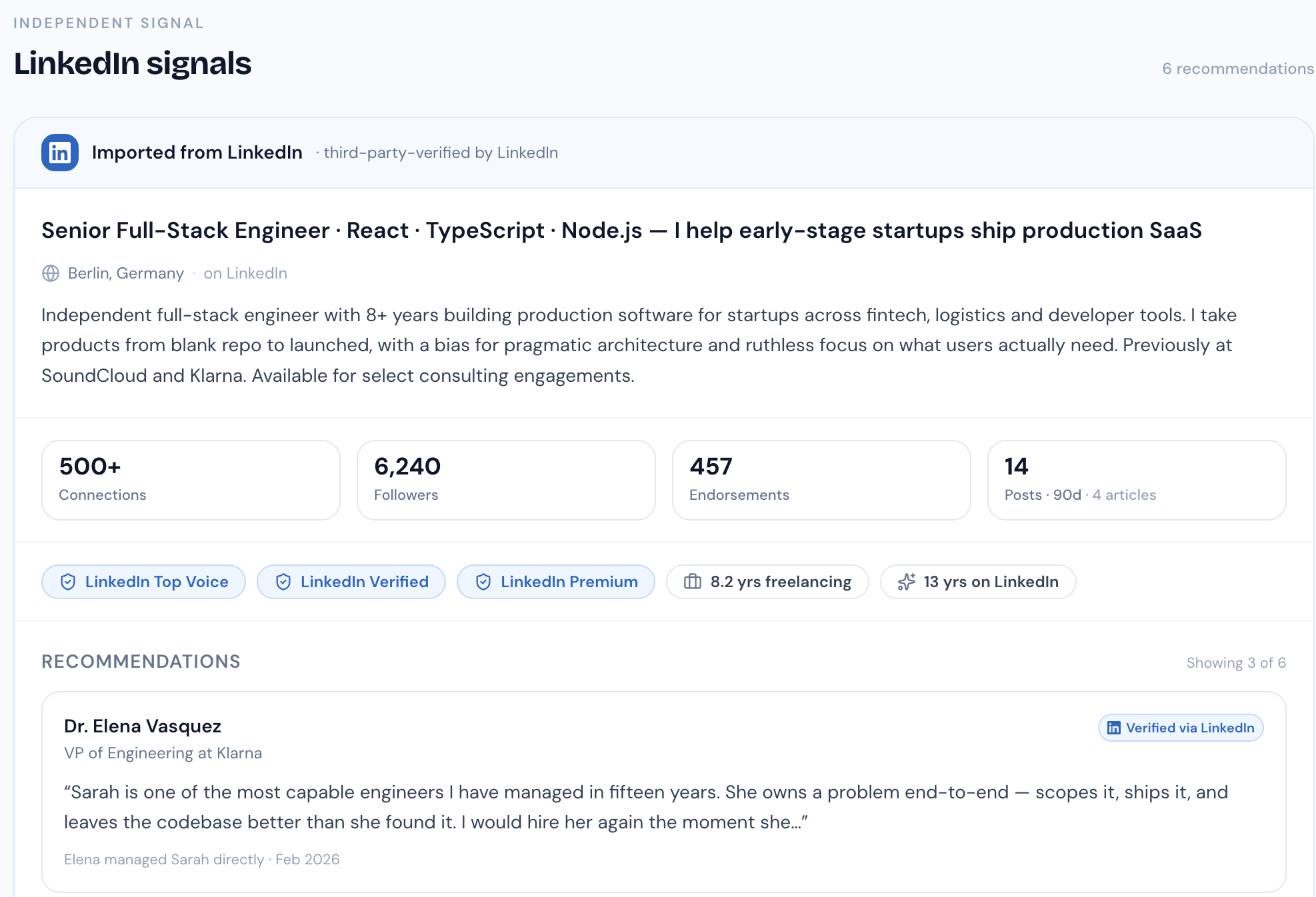
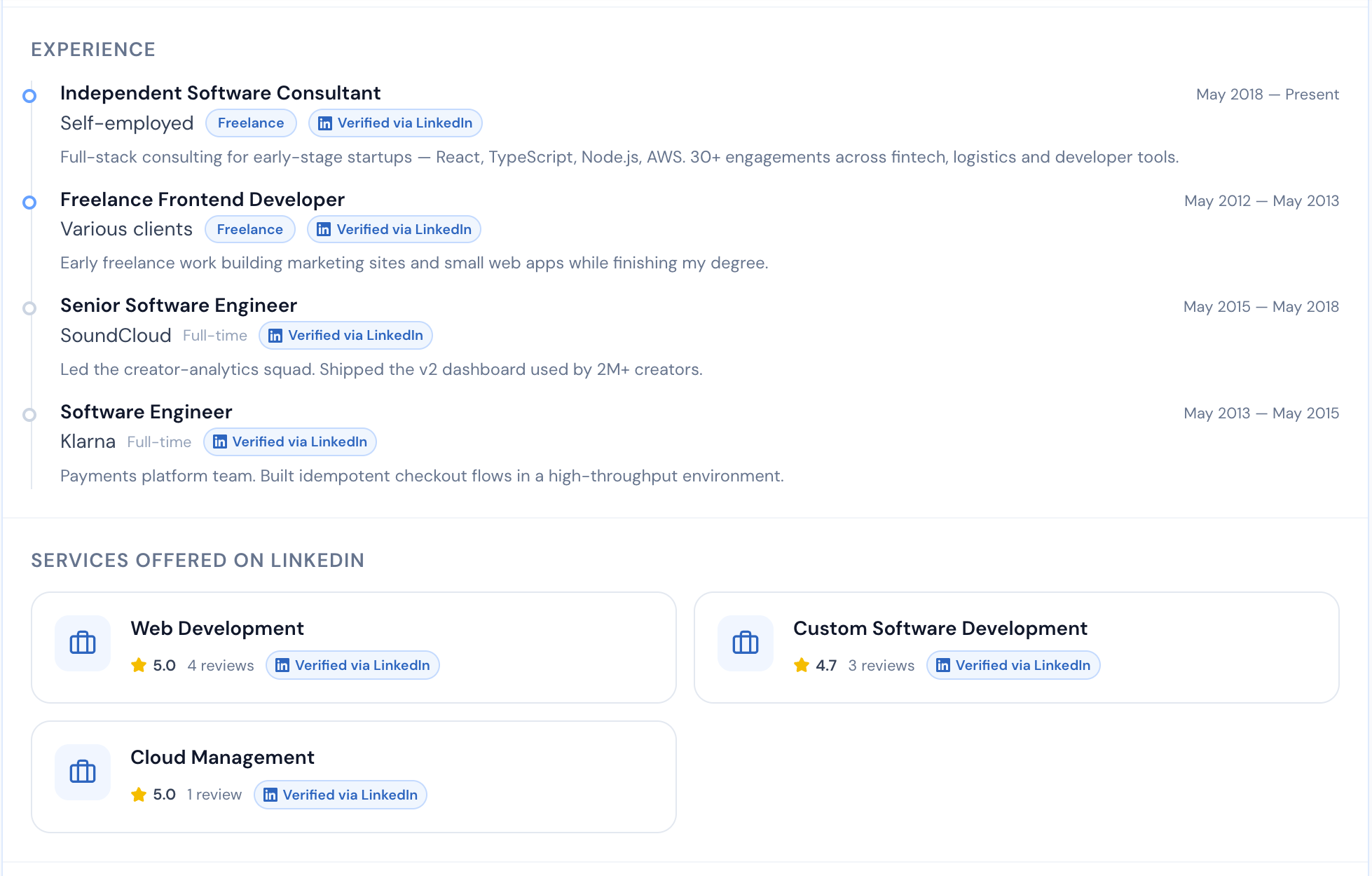
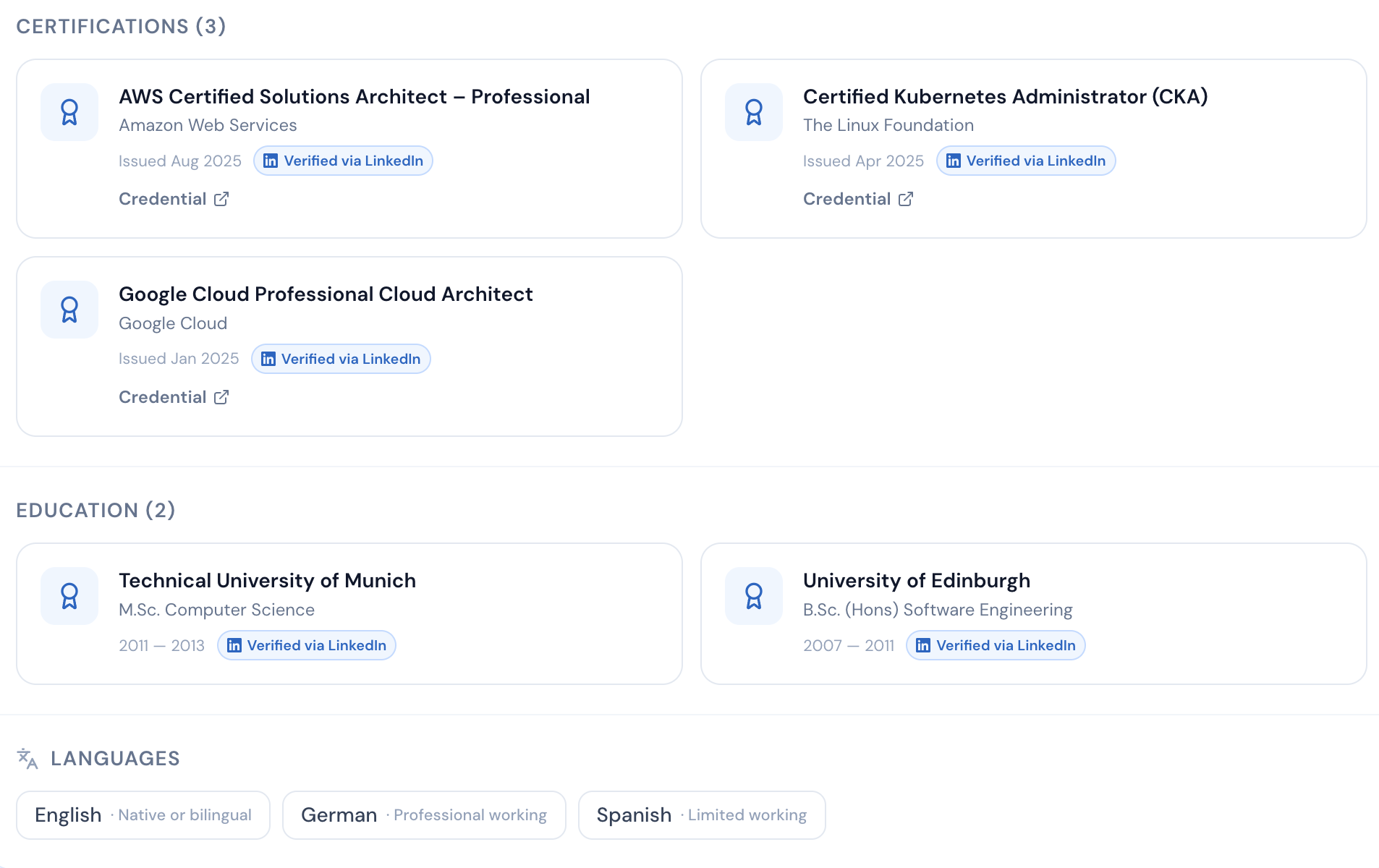
Keeping it fresh: re-sync any time by repeating steps 5–8. The card shows "last synced X days ago" and an Open my LinkedIn profile (refresh) button.
Is this safe? Yes. The extension only reads the LinkedIn page you're already viewing, in your own session. Your password never leaves your browser, we never store your login, and public recommendation / review text is shown as a short snippet that links back to LinkedIn — never the full copyrighted text.
Troubleshooting:
- Popup says "Connect LinkedIn on LanceRank first" → you added your URL after authorizing the extension. Click Re-authorize the extension on the dashboard card, then try again.
- Nothing imported → make sure you're on your own linkedin.com/in/ page and logged in to LinkedIn in that tab.
- No icon in the toolbar → click the puzzle-piece Extensions icon and pin LanceRank Sync.
Was this article helpful?
That’s Great!
Thank you for your feedback
Sorry! We couldn't be helpful
Thank you for your feedback
Feedback sent
We appreciate your effort and will try to fix the article